
Webhooks
Overview
Webhooks let your application receive event notifications from Moloco Commerce Media (MCM) without polling. MCM sends each notification as a signed HTTP POST request to a destination that you configure in MCM Portal.
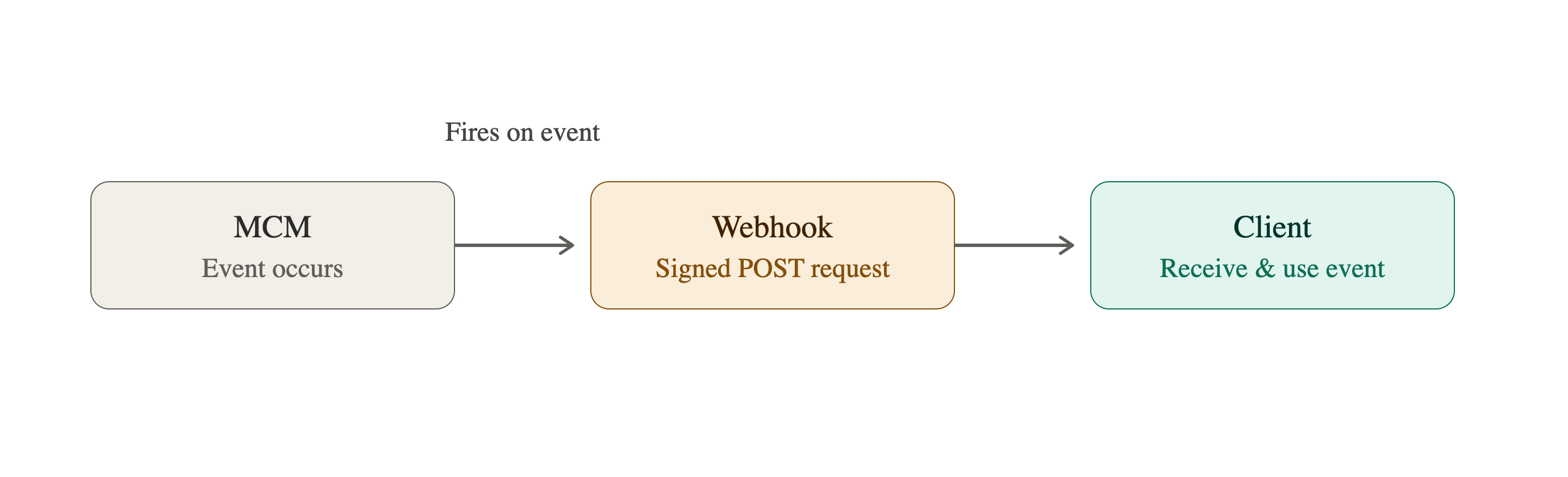
This guide explains how to configure a destination, verify deliveries, and handle retries. For event-specific payload fields and examples, see Supported events.
TerminologyA destination is a webhook configuration in MCM Portal. An event describes what happened. A delivery is MCM's attempt to send one event to a destination.
Prerequisites
Before starting, you need:
- Administrator access to MCM Portal.
- The Webhooks feature enabled for your platform. If Webhooks is not available in the administration area, contact your Moloco representative.
- An HTTPS endpoint that MCM can reach and that can return a response within five seconds.
- Access to the unmodified request-body bytes in your application. Signature verification fails if your framework parses or rewrites the JSON before you verify it.
STEP 1: Create a webhook destination
-
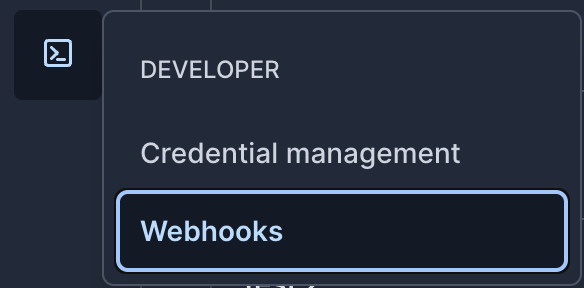
In the administration area of MCM Portal, open Webhooks.
-
Select New destination.
-
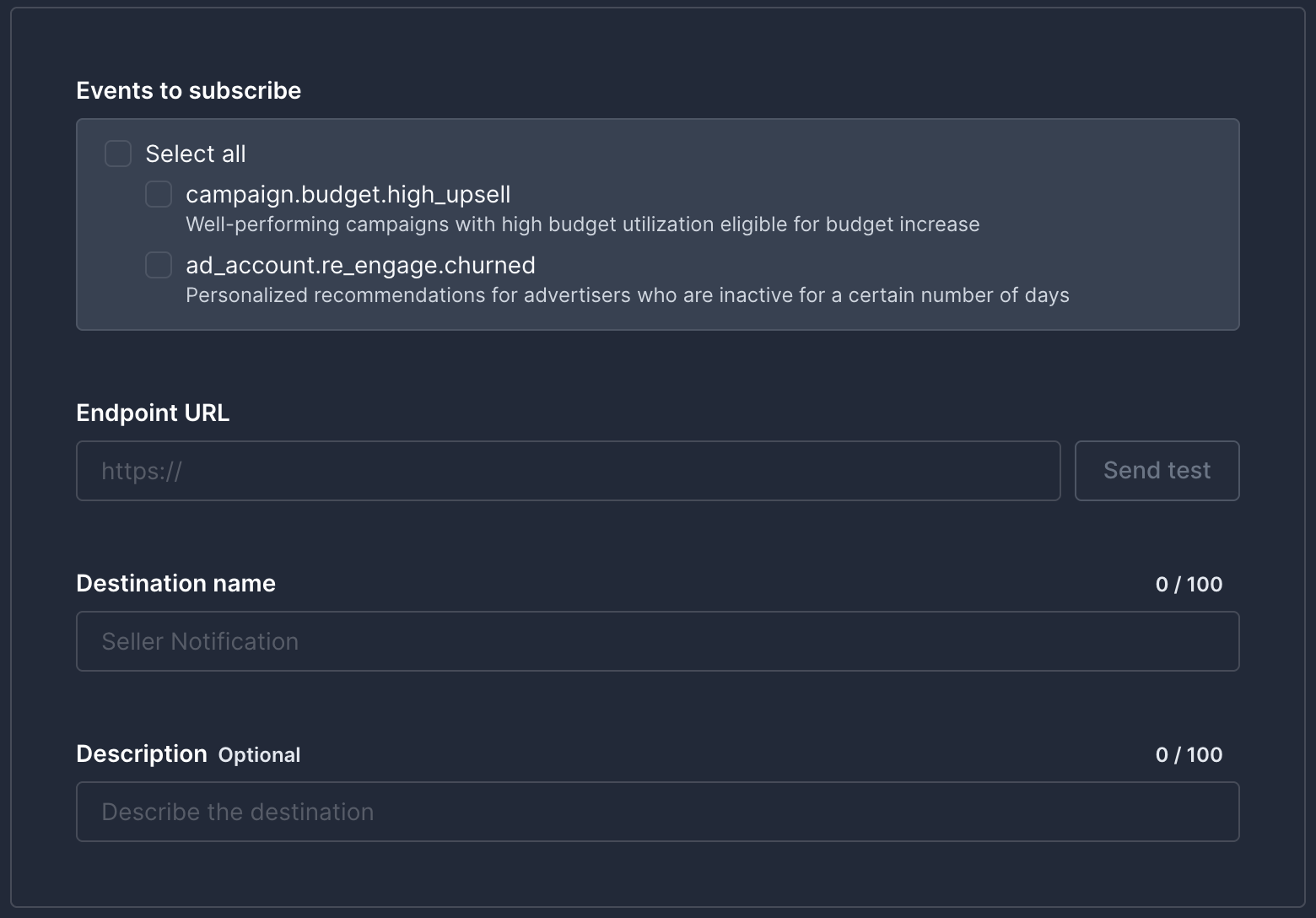
Under Events to subscribe, select the events that your application will receive.
-
Enter the Endpoint URL, Destination name, and, optionally, a Description. The endpoint URL must use HTTPS.
-
Optionally, select Send test to check whether the URL is reachable. Because this check is unsigned, a receiver that requires a valid signature may reject it by design.
-
-
Select Add.
-
Copy the signing secret and store it in your secret manager. MCM displays the secret when it is issued; do not store it in source code or logs.
The test sent before you add the destination is unsignedThis test only checks connectivity and is not shown in delivery history. Do not disable signature verification on a production endpoint to make this check pass. After you save the destination and its signing secret, send another test from the destination detail page to exercise the signed delivery flow.
STEP 2: Receive a delivery
MCM sends each delivery as an HTTP POST request with a JSON body and these headers:
Content-Type: application/jsonUser-Agent: Moloco-Webhook/1x-moloco-webhook-id: A unique identifier assigned to each webhook delivery.x-moloco-webhook-signature: The timestamp and one or more HMAC signatures used to verify the delivery. For the exact format, see Verify a signature below.
Every request body contains id, event, test, event_at, platform_id, and the event-specific data object. event_at is the time when MCM generated the notification. Use the corresponding API Reference page as the source of truth for the complete schema and a valid payload example.
STEP 3: Verify a signature
Your endpoint URL is publicly reachable, so anyone could send a POST request that looks like a webhook. Verifying the signature proves that a delivery genuinely came from MCM and was not altered in transit. Always verify before you act on a delivery's contents. The signature header has this format:
t=<unix_timestamp>,v1=<hex_encoded_signature>[,v1=<hex_encoded_signature>]MCM computes each v1 value as follows:
signed_content = <t> + "." + <raw_request_body>
v1 = hex(HMAC-SHA256(signing_secret, signed_content))
To verify a delivery:
-
Read
tand everyv1value fromx-moloco-webhook-signature. -
Reject a timestamp outside the replay window that your application permits. The example below uses five minutes; choose a window appropriate for your security requirements.
-
Build the signed content from
t, a period (.), and the exact request-body bytes that you received. -
Compute an HMAC-SHA256 digest with each active signing secret that you store.

-
Compare the computed digest with every received
v1value using a constant-time comparison. Accept the delivery if any pair matches.
Use the raw request bodyDo not parse and re-serialize the JSON before verification. Even an insignificant formatting change produces a different signature.
The examples below accept more than one local secret so that requests continue to verify while you rotate a signing key.
import { createHmac, timingSafeEqual } from 'node:crypto';

const SHA256_HEX = /^[0-9a-f]{64}$/i;

export function verifyMolocoWebhook({
  rawBody,
  signatureHeader,
  secrets,
  toleranceSeconds = 300,
  nowSeconds = Math.floor(Date.now() / 1000),
}) {
  if (
    !Buffer.isBuffer(rawBody) ||
    typeof signatureHeader !== 'string' ||
    !Array.isArray(secrets) ||
    !Number.isSafeInteger(toleranceSeconds) ||
    toleranceSeconds < 0 ||
    !Number.isSafeInteger(nowSeconds)
  ) {
    return false;
  }

  const timestamps = [];
  const signatureValues = [];
  for (const part of signatureHeader.split(',')) {
    const [key, ...rest] = part.trim().split('=');
    const value = rest.join('=');
    if (key === 't') timestamps.push(value);
    if (key === 'v1') signatureValues.push(value);
  }

  if (timestamps.length !== 1 || signatureValues.length === 0) {
    return false;
  }

  const timestampText = timestamps[0];
  const timestamp = Number(timestampText);
  if (
    !Number.isSafeInteger(timestamp) ||
    timestamp < 0 ||
    String(timestamp) !== timestampText ||
    Math.abs(nowSeconds - timestamp) > toleranceSeconds
  ) {
    return false;
  }

  const receivedSignatures = [];
  for (const value of signatureValues) {
    if (!SHA256_HEX.test(value)) return false;
    receivedSignatures.push(Buffer.from(value, 'hex'));
  }

  return secrets.some((secret) => {
    let key;
    if (Buffer.isBuffer(secret)) {
      key = secret;
    } else if (typeof secret === 'string') {
      key = Buffer.from(secret, 'utf8');
    } else {
      return false;
    }
    if (key.length === 0) return false;

    const expected = createHmac('sha256', key)
      .update(Buffer.from(`${timestampText}.`, 'utf8'))
      .update(rawBody)
      .digest();

    return receivedSignatures.some((received) =>
      timingSafeEqual(received, expected),
    );
  });
}import hashlib
import hmac
import re
import time
from collections.abc import Iterable
SHA256_HEX = re.compile(r"[0-9a-fA-F]{64}\Z")
def verify_moloco_webhook(
*,
raw_body: bytes,
signature_header: str | None,
secrets: Iterable[bytes],
tolerance_seconds: int = 300,
now_seconds: int | None = None,
) -> bool:
if not isinstance(raw_body, bytes) or not isinstance(signature_header, str):
return False
if (
not isinstance(tolerance_seconds, int)
or isinstance(tolerance_seconds, bool)
or tolerance_seconds < 0
):
return False
timestamps = []
signature_values = []
for part in signature_header.split(","):
key, separator, value = part.strip().partition("=")
if not separator:
continue
if key == "t":
timestamps.append(value)
elif key == "v1":
signature_values.append(value)
if len(timestamps) != 1 or not signature_values:
return False
timestamp_text = timestamps[0]
if not timestamp_text.isascii() or not timestamp_text.isdigit():
return False
timestamp = int(timestamp_text)
if str(timestamp) != timestamp_text:
return False
if now_seconds is None:
now_seconds = int(time.time())
if (
not isinstance(now_seconds, int)
or isinstance(now_seconds, bool)
or abs(now_seconds - timestamp) > tolerance_seconds
):
return False
received_signatures = []
for value in signature_values:
if SHA256_HEX.fullmatch(value) is None:
return False
received_signatures.append(bytes.fromhex(value))
try:
active_secrets = tuple(secrets)
except TypeError:
return False
signed_content = f"{timestamp_text}.".encode("ascii") + raw_body
for secret in active_secrets:
if not isinstance(secret, bytes) or not secret:
continue
expected = hmac.new(secret, signed_content, hashlib.sha256).digest()
if any(
hmac.compare_digest(expected, received)
for received in received_signatures
):
return True
return Falsepackage webhooks
import (
"crypto/hmac"
"crypto/sha256"
"encoding/hex"
"strconv"
"strings"
"time"
)
func VerifyMolocoWebhook(
rawBody []byte,
signatureHeader string,
secrets [][]byte,
tolerance time.Duration,
now time.Time,
) bool {
if signatureHeader == "" || tolerance < 0 || now.IsZero() {
return false
}
var timestampText string
var timestampSeen bool
var signatureValues []string
for _, rawPart := range strings.Split(signatureHeader, ",") {
key, value, found := strings.Cut(strings.TrimSpace(rawPart), "=")
if !found {
continue
}
switch key {
case "t":
if timestampSeen {
return false
}
timestampSeen = true
timestampText = value
case "v1":
signatureValues = append(signatureValues, value)
}
}
if !timestampSeen || timestampText == "" || len(signatureValues) == 0 {
return false
}
for i := 0; i < len(timestampText); i++ {
if timestampText[i] < '0' || timestampText[i] > '9' {
return false
}
}
timestamp, err := strconv.ParseInt(timestampText, 10, 64)
if err != nil || strconv.FormatInt(timestamp, 10) != timestampText {
return false
}
age := now.Sub(time.Unix(timestamp, 0))
if age > tolerance || age < -tolerance {
return false
}
receivedSignatures := make([][]byte, 0, len(signatureValues))
for _, value := range signatureValues {
if len(value) != sha256.Size*2 {
return false
}
received, err := hex.DecodeString(value)
if err != nil || len(received) != sha256.Size {
return false
}
receivedSignatures = append(receivedSignatures, received)
}
signedPrefix := []byte(timestampText + ".")
for _, secret := range secrets {
if len(secret) == 0 {
continue
}
mac := hmac.New(sha256.New, secret)
_, _ = mac.Write(signedPrefix)
_, _ = mac.Write(rawBody)
expected := mac.Sum(nil)
for _, received := range receivedSignatures {
if hmac.Equal(expected, received) {
return true
}
}
}
return false
}The Node.js example accepts secrets as strings or Buffer values. The Python and Go examples accept secrets as bytes. For a production Go call, pass your replay window and current time, for example 5*time.Minute and time.Now().
Signature test vector
Use this fixed input to test only your signature implementation. It is not a complete webhook event, and its timestamp is intentionally fixed.
Signing secret: whsec_example_do_not_use_in_production
Timestamp:      1709539200
Raw body:       {"id":"Abcdef0123456789","event":"campaign.budget.high_upsell","test":true}
Expected v1:    2a20592debc622850fc410b9a2b88c5b4f4f2d3d0c0706f93e616a1df3980418
When you use this vector, set Node.js nowSeconds or Python now_seconds to 1709539200. For Go, pass time.Unix(1709539200, 0) as now. This prevents the replay-window check from rejecting the fixed timestamp.
STEP 4: Acknowledge a delivery
After you verify the signature, durably queue or store the event and return any HTTP 2xx response within five seconds. MCM does not use the response body.
- A timeout, network error, redirect, or any non-
2xxresponse counts as a failed attempt. - MCM does not follow redirects. Configure the final HTTPS URL as the destination.
- For a delivery with
test: true, verify and acknowledge it normally, but do not trigger production side effects.
STEP 5: Handle retries, duplicates, and ordering
By default, MCM makes up to three total delivery attempts. After the first failed attempt, MCM waits approximately 10 seconds; after the second, approximately 20 seconds. A destination's configured retry policy can differ.
Automatic retries and manual resends keep the original request body and webhook ID (x-moloco-webhook-id and body id). The signature timestamp and signature are generated again for each attempt.
MCM can deliver the same webhook more than once, and events are not guaranteed to arrive in order. Do not assume exactly-once or ordered delivery. Make your receiver idempotent:
- Use
x-moloco-webhook-idor the bodyidas the idempotency key. - Atomically record the key while durably storing or queuing the event, for example by using a unique constraint in the same transaction.
- If the key already exists, do not queue the event or repeat its side effects; return
2xx. - Make downstream side effects idempotent as well, or record their completion transactionally where possible.
STEP 6: Test your integration
MCM Portal provides two test flows:
- Before saving a destination: Send test performs an unsigned connectivity check. It does not create a delivery-history record.
- After saving a destination: Send test uses the normal signed delivery pipeline, sets
testtotrue, and creates a record under Deliveries. The destination must be enabled, subscribed to the selected event, and have an active signing secret.
Before going live, confirm that your receiver:
- Verifies the signed test with the saved secret.
- Returns
2xxwithin five seconds. - Records the webhook ID without producing real business side effects.
- Shows the test as successful in Deliveries.
Supported events
As of 2026 August, the following webhooks are supported:
STEP 7: Rotate a signing secret
Rotate a secret without interrupting delivery:
- Add a signing secret in the destination detail page and copy it to your secret manager.
- Deploy your receiver with both the current and new secrets.
- Send a signed test and confirm that your receiver accepts it.
- Revoke the old secret.
During rotation, x-moloco-webhook-signature can contain more than one v1 value. Check every value against every active secret that you store.
Go-live checklist
- The destination uses the final HTTPS URL and subscribes only to required events.
- Signing secrets are stored outside source code and logs.
- Signature verification uses the raw body and a constant-time comparison.
- The receiver returns
2xxwithin five seconds after durable acceptance. - Duplicate and out-of-order events are safe to process.
test: truecannot cause production side effects.- Monitoring alerts on repeated failures and unexpected signature errors.
Updated 3 months ago